Office · Module 09 of 20
Library
The library module covers the whole loan cycle: what the school holds, what is out, what is late, and the requests waiting on a librarian — with the reminder emails wired in rather than chased by hand.
- Route
- /office/library-dashboard
- Captured in
- Chrome
- Reaches
- Librarian, admin
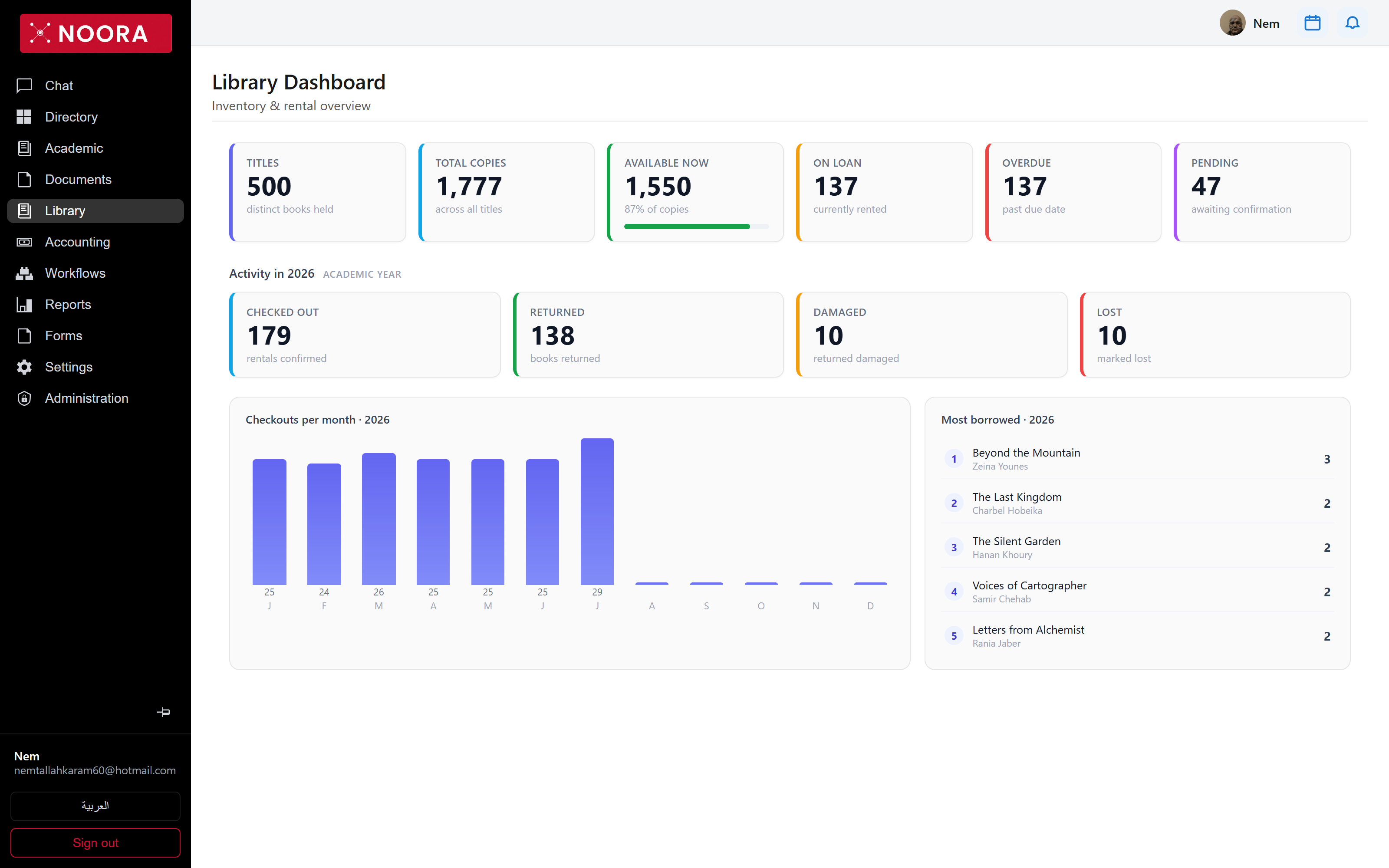
Reading the dashboard
| Counter | Means |
|---|---|
| Titles | Distinct books held — 500 in this school. |
| Total copies | Physical copies across all titles — 1,777. |
| Available now | Copies on the shelf, with the share of stock that represents. |
| On loan | Copies currently rented out. |
| Overdue | Loans past their due date — the number to act on. |
| Pending | Requests awaiting a librarian's confirmation. |
| Checked out / Returned / Damaged / Lost | Activity for the academic year, so a bad month is visible in context. |
Rental requests
Every loan is a request record with its own lifecycle: a student asks, a librarian confirms, the book goes out with a due date, and it comes back with a condition. Nothing is deleted — a damaged return keeps both the date and the condition it came back in.
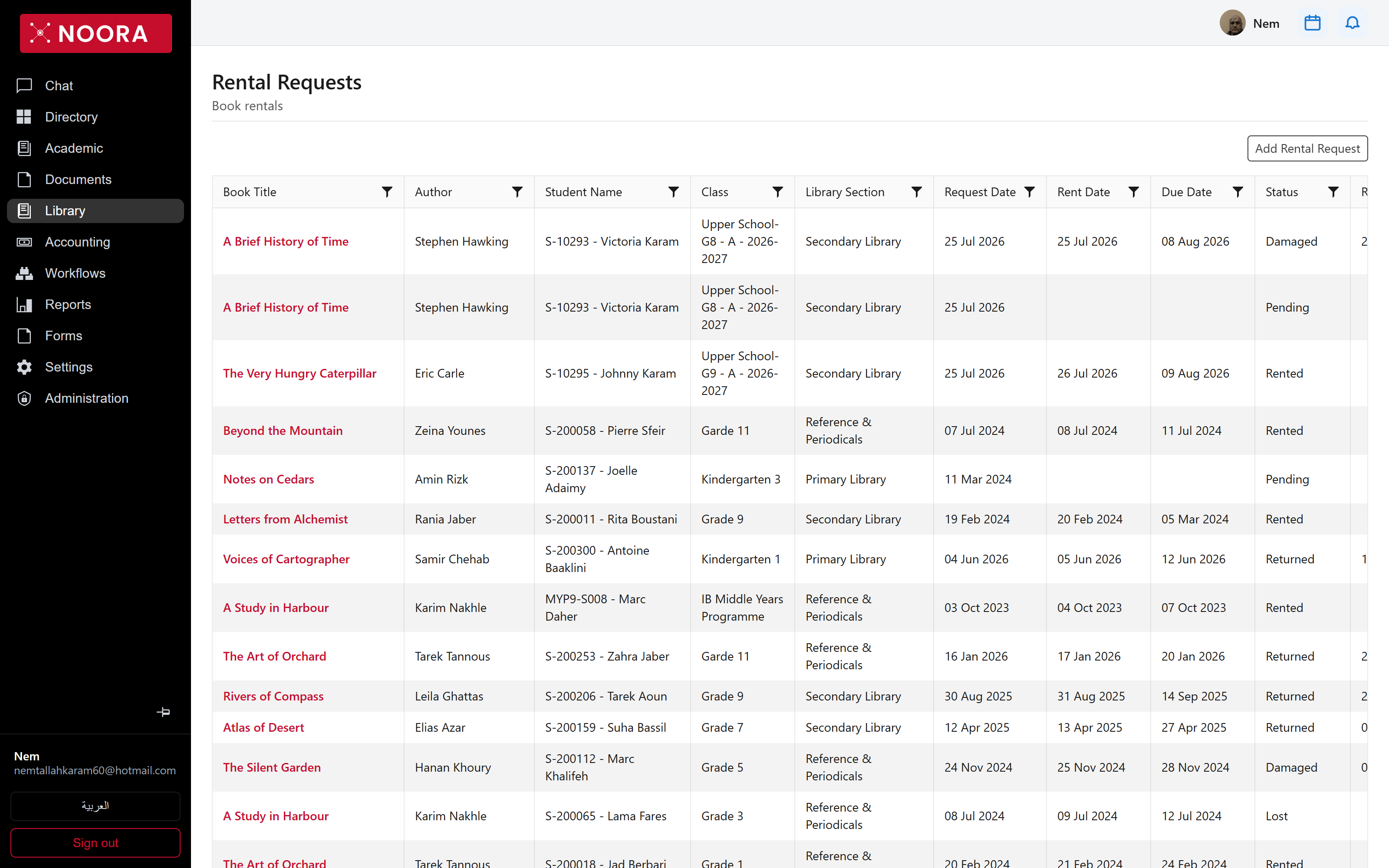
Pending, Rented, Damaged) and return condition records how it came back.
Setting the library up
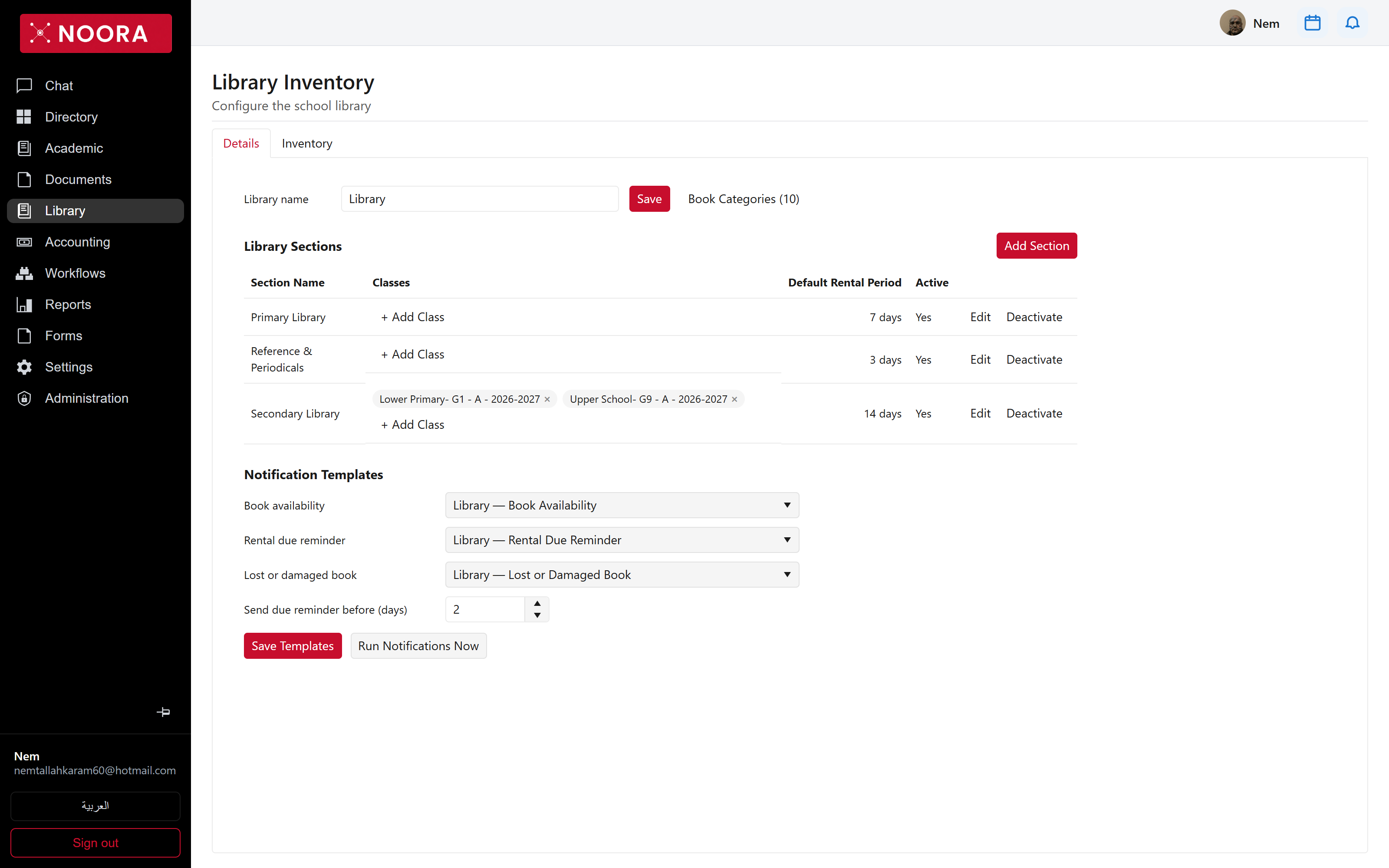
A school's library is split into sections — Primary Library, Reference & Periodicals, Secondary Library — and each section has its own default rental period and the classes allowed to borrow from it. That is how a reference shelf lends for three days while the secondary library lends for fourteen.
Reminders
- Pick the template used for book availability, rental due reminders, and lost or damaged books.
- Set how many days before the due date a reminder goes out.
- Use Run notifications now to send the current batch instead of waiting for the schedule.