Office · Module 01 of 20
Noora Assistant
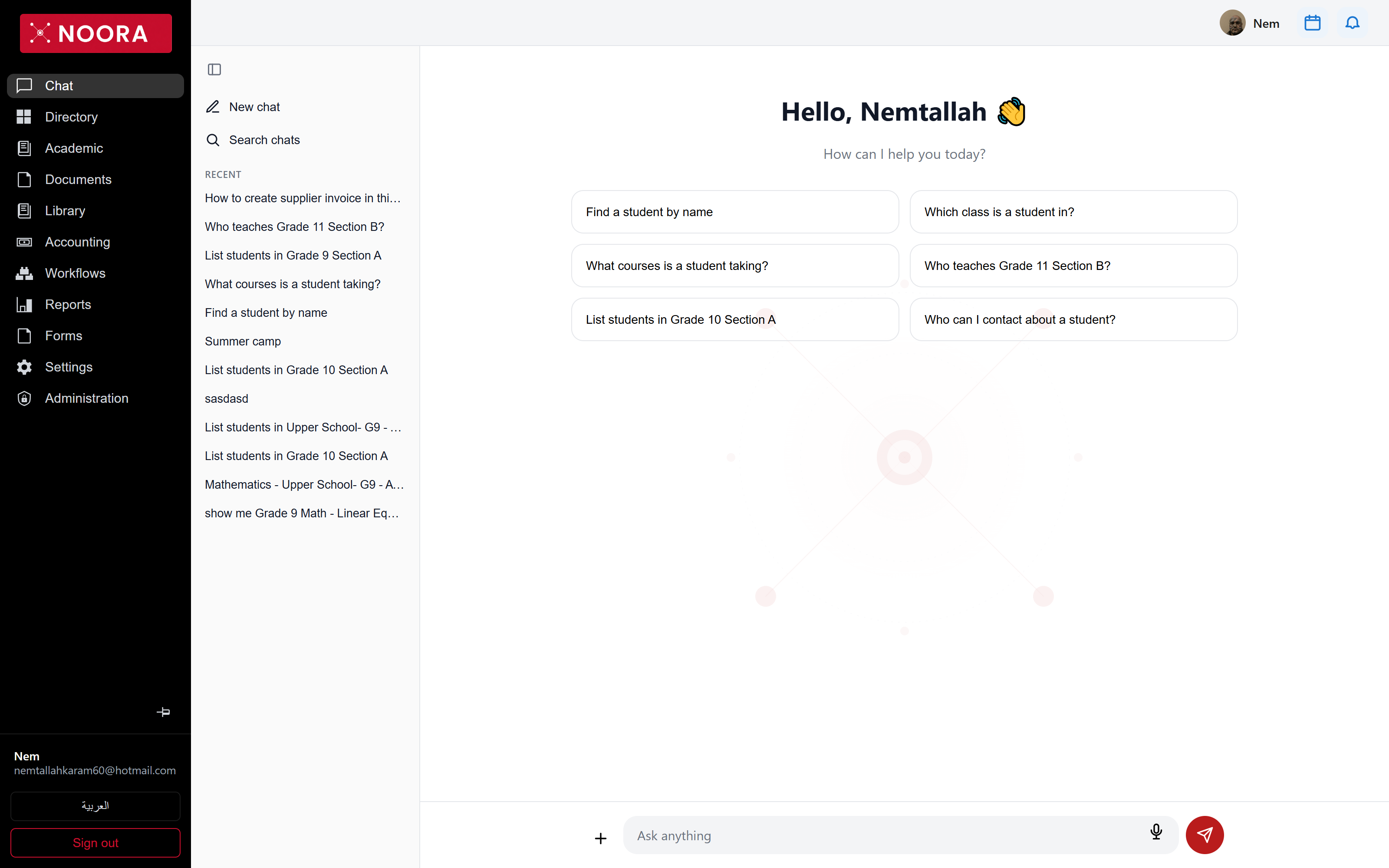
The assistant is the office landing screen. Staff ask about students, classes, teachers and school documents in plain language, and Noora answers from the school's own records instead of sending anyone digging through grids.
- Route
- /office/chat
- Captured in
- Chrome
- Reaches
- Every signed-in staff member
What you can do here
- Ask directory questions — Find a student by name, Which class is a student in?, What courses is a student taking?, Who teaches Grade 11 Section B?
- Pull a roster on the spot, such as List students in Upper School- G9 - A - 2026-2027.
- Ask how the software itself works — recent threads include How to create supplier invoice in this software.
- Ask for a document a teacher uploaded, such as show me Grade 9 Math - Linear Equations Homework PDF.
- Start a New chat, or search earlier ones from Search chats.
How the answers are built
Noora answers from two sources: the live school database for anything factual about people, classes and enrolment, and the indexed text of uploaded material for document questions. Answers respect the asker's permissions, so a chat reply can never expose a record the same user could not open in a grid.
Whether the family-facing assistant may reveal teacher emails and phone numbers is controlled per school in Administration & Settings — off means names only.
The office shell
Every office screen shares this frame: the module rail on the left (Chat, Directory, Academic, Documents, Library, Accounting, Workflows, Reports, Forms, Settings, Administration), the signed-in user and an Arabic toggle at the bottom, and the calendar and notification shortcuts top right. The rail collapses to icons when you need the width.
Noora signs you in with a one-time code sent to your email — there are no passwords. If your account covers more than one school, a Select a school prompt appears before the first screen loads; the choice sticks to the device and can be changed later from the top bar.