Office · Module 14 of 20
Administration & settings
Administration is where a school's behaviour is set rather than its data: naming conventions, which alerts go out on which template, how much the family assistant may reveal, who has an account, and what each role can do.
- Route
- /office/admin/settings
- Captured in
- Chrome
- Reaches
- School admin, platform admin
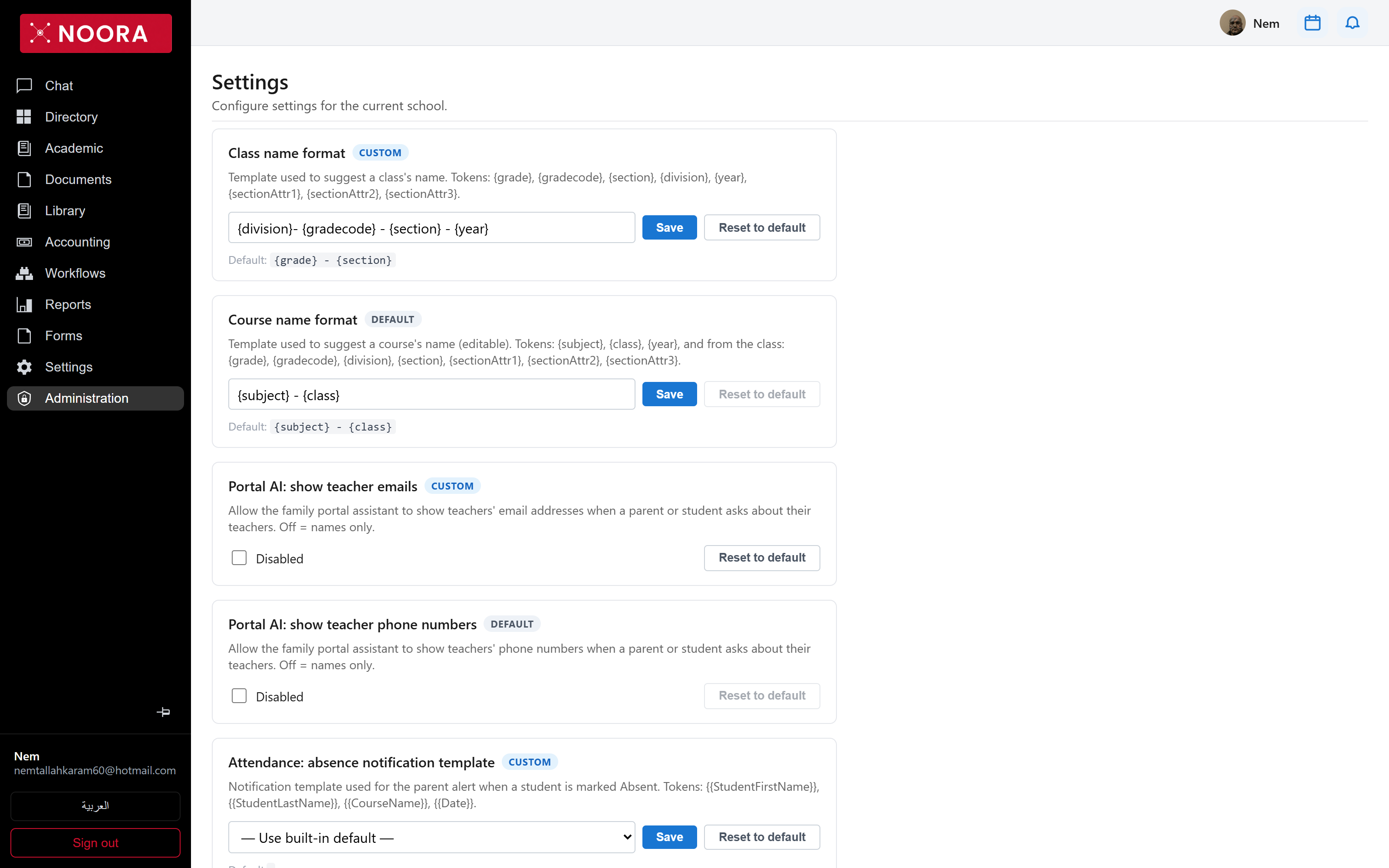
DEFAULT or CUSTOM and carries its own Reset to default — you can always see what a school has changed.
School settings
| Setting | Controls |
|---|---|
| Class name format | Template suggesting a class's name. Tokens: {grade}, {gradecode}, {section}, {division}, {year}, {sectionAttr1–3}. |
| Course name format | Same idea for courses, with {subject} and {class} plus the class's own tokens. |
| Portal AI: teacher emails | Whether the family assistant may give out a teacher's email. Off means names only. |
| Portal AI: teacher phone numbers | The same decision for phone numbers, set separately. |
| Attendance templates | Which notification template is used when a student is marked absent, late or a no-show. Tokens like {{StudentFirstName}} and {{CourseName}} fill from the event. |
Users
One account can hold several roles and belongs to a school. The list shows email, locale, phone, roles, school, and whether the account is active or a platform-level one.
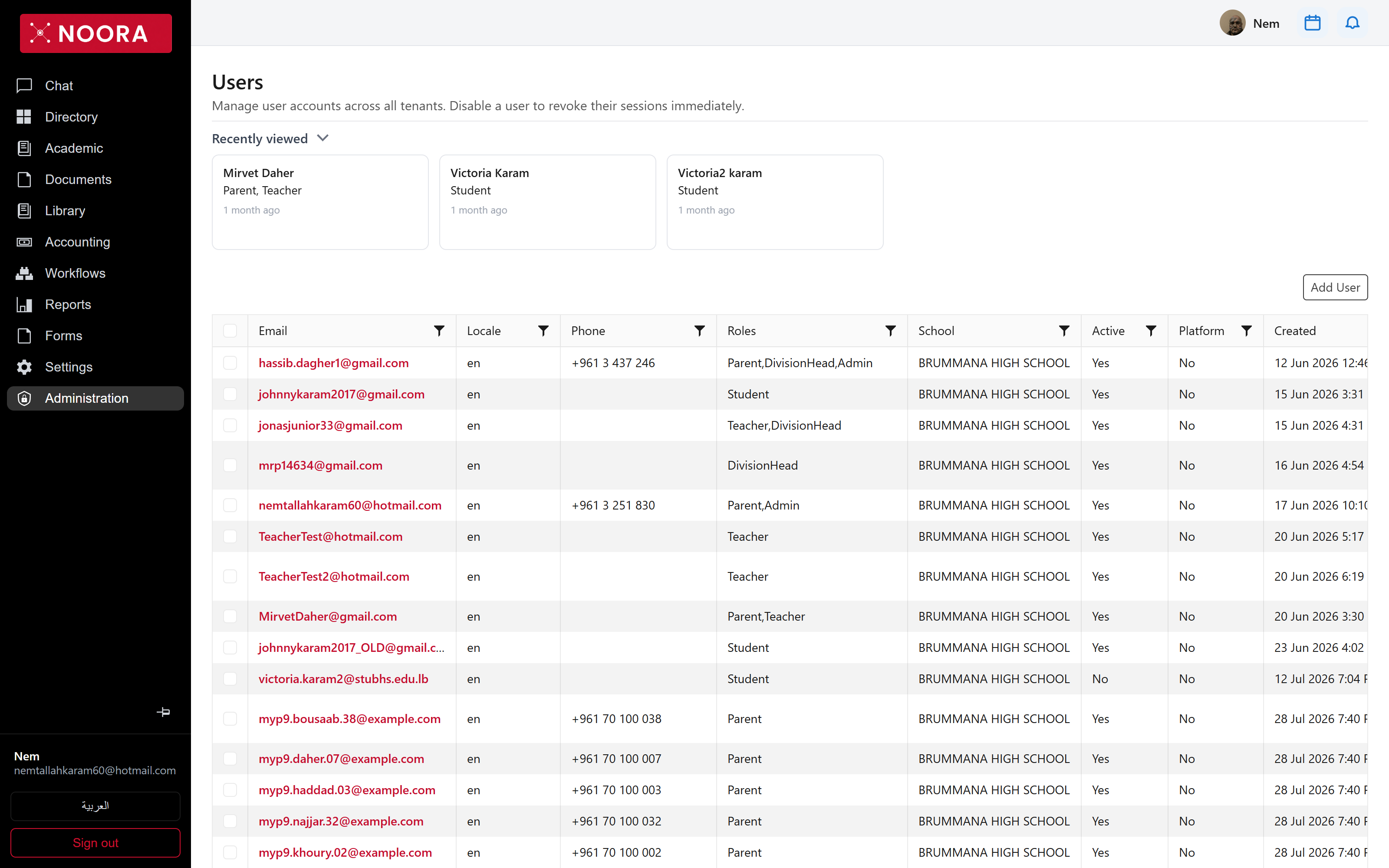
Parent,DivisionHead,Admin is one person wearing three hats.
Disabling a user revokes their sessions straight away rather than at next sign-in — the control to use when someone leaves mid-term.
Role permissions
Permissions are a grid: every page down the side, every role across the top, and the verbs — view, create, update, delete, export — as checkboxes. A second tab does the same for document access. This is where a division head is granted the directory but not the ledger.
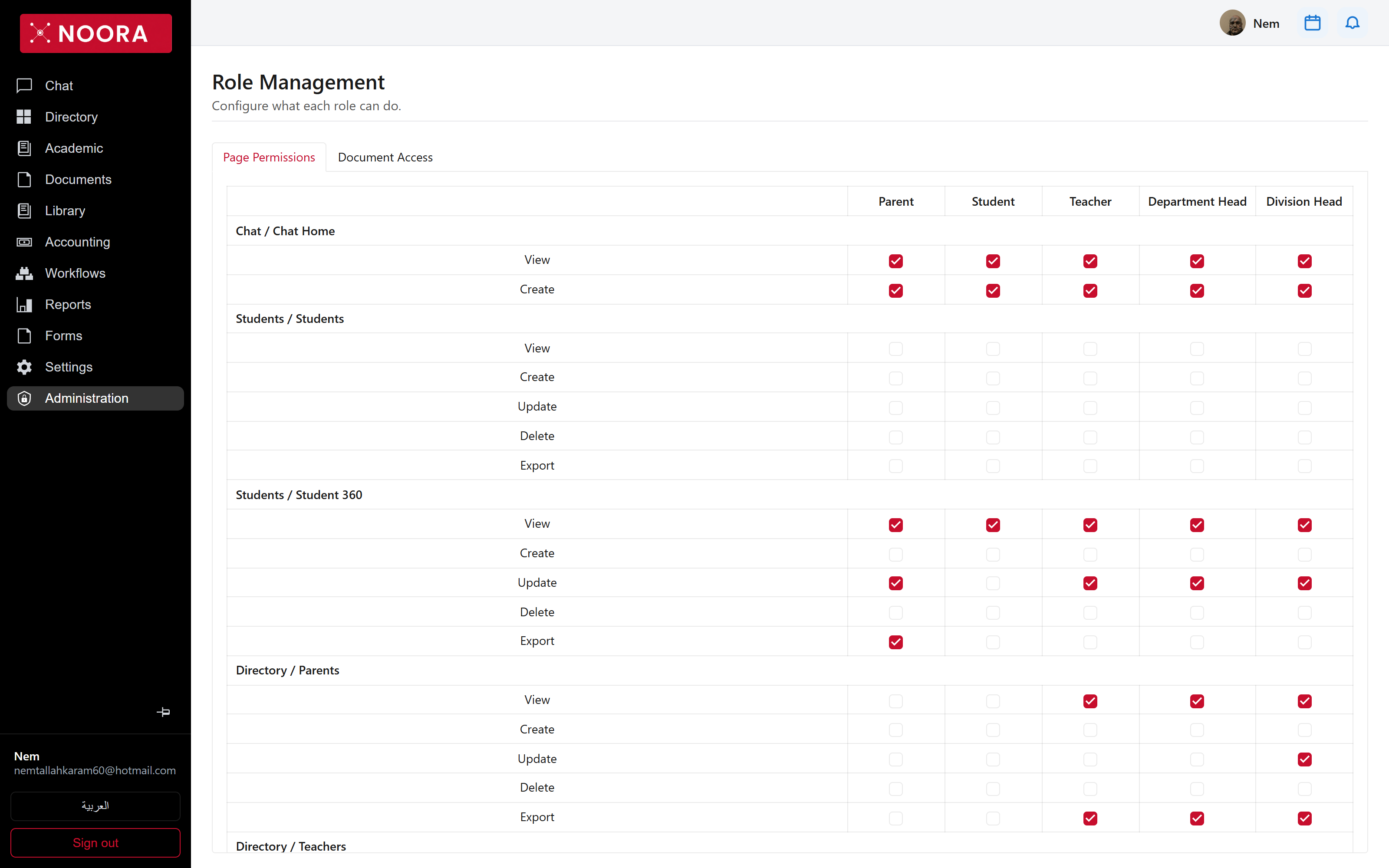
Administration also covers tenants and schools, letter grades, notification templates, resource credentials and posting exceptions.